WINDOWS / AR TOOL
Installation and usage guide
Follow the setup, launch and feature steps in order. This guide covers the Windows client; screenshots show the current version.
Install and launch
Check the game folder and environment before launching the client and game.
Select the game folder
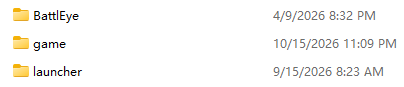
In AR TOOL, select the Albion Online installation folder. It must directly contain the BattlEye, game and launcher folders.
Install Npcap
AR TOOL needs Npcap to run. Download and install it from the official website before launching the client.
Visit the Npcap websiteLaunch in order
If you use a game accelerator, select routing mode and launch accelerator → AR TOOL → game. Administrator access is normally unnecessary; if the game runs as administrator, AR TOOL must too.
Set the display mode for ESP
To use ESP mode, first set the game's display mode to Borderless or Windowed.
Already started the game?
If you open AR TOOL after the game starts, go through a portal or log back in; otherwise auto fishing may not work correctly.
Resolution: the gathering and fishing bots are known to work at 1920 × 1080 and 2560 × 1440. Test other resolutions yourself.
Radar
Filter what appears on the radar and set audio alerts for resources and nearby players.
Filter resources and special targets
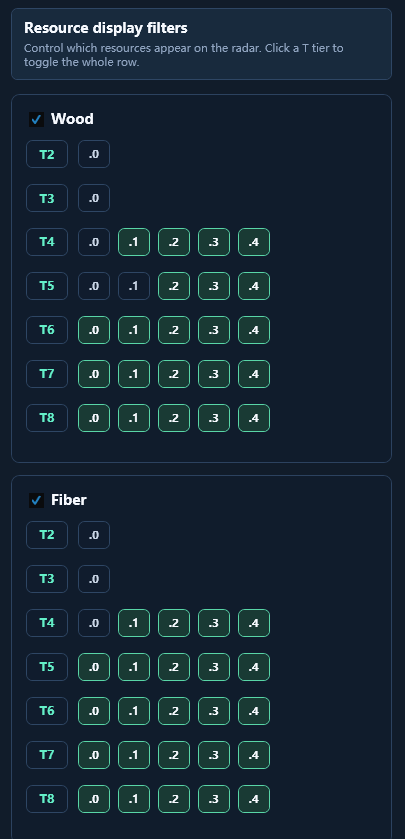
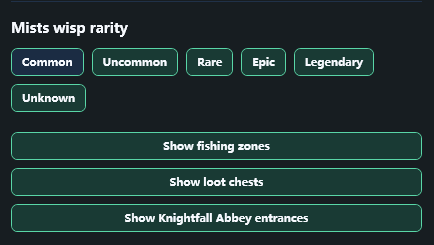
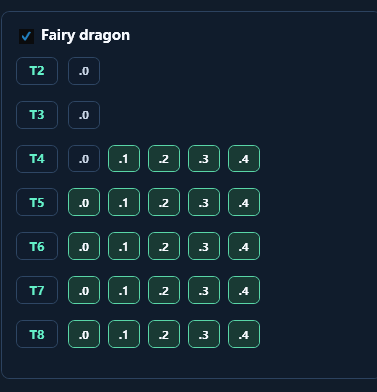
Choose visible targets by resource type, tier and enchantment. You can also show rare Mists creatures such as fairy dragons and griffins, chest rarity, fishing spots and remaining fish, and Knightfall Abbey entrances.
Set audio alerts by resource group
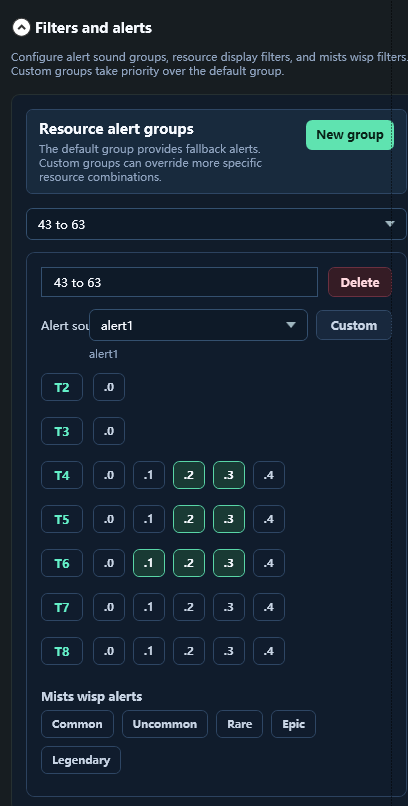
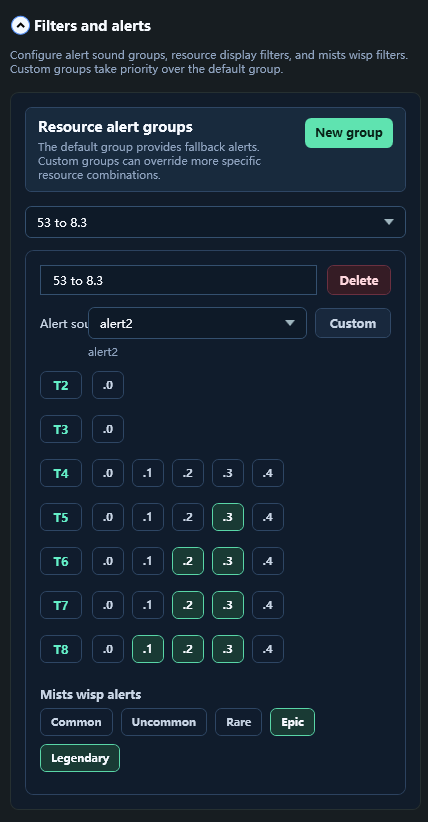
Create resource alert groups with different sounds for tiers and enchantments. You can also alert on Mists creatures, making targets easier to distinguish by sound.
Alert on selected mounts
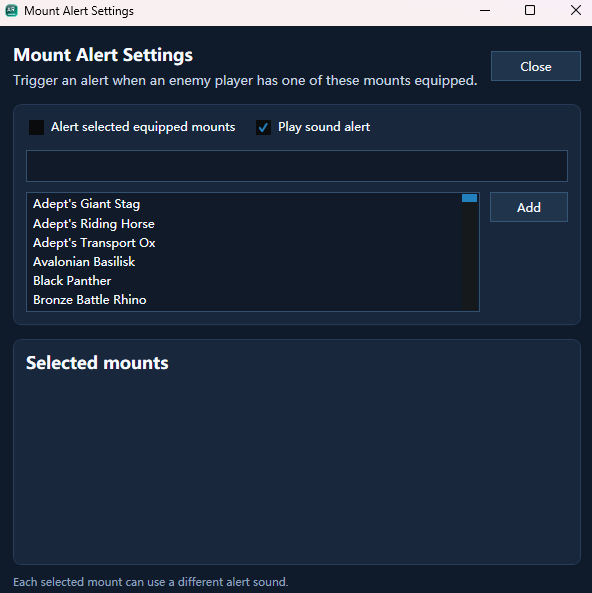
Add selected mounts to Mount alerts and enable audio. When a nearby hostile player rides one, its alert sounds; each mount can have a different sound.
View nearby player details
When a nearby hostile player is detected, the panel shows their gear and skills, current health, mount status and combat status. The screenshot shows the panel before a player is detected.
Showing the exact location of hostile players requires separately purchased companion hardware. For purchase or setup questions, email us:
rivers.boat.snow@gmail.com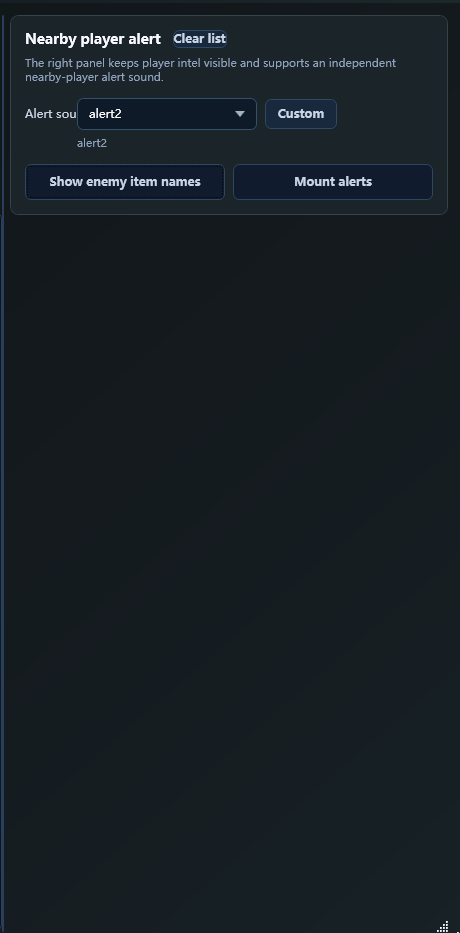
Auto fishing
Check the game display, then set the mode, inventory key and target fish.
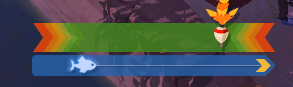
Keep the progress bar visible
Do not cover the fishing progress bar, and leave it in its default in-game position.
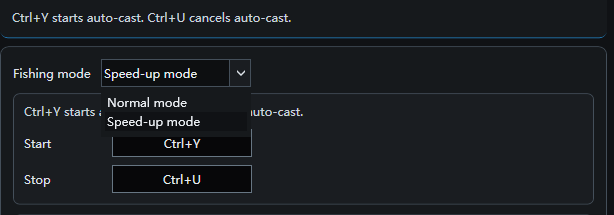
Set mode and hotkeys
Choose normal or speed-up mode, then set the start and stop hotkeys. Speed-up mode handles some higher-tier fish faster, with an estimated fishing-speed increase of about 200%–300%.
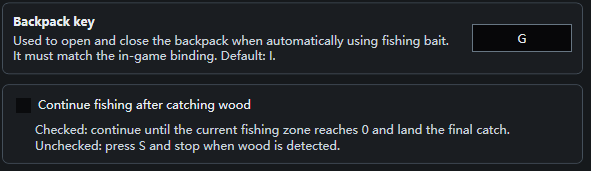
Check the inventory key
The inventory key must match your in-game binding. If bait is not used automatically, check this setting. You can also choose whether to continue fishing after catching wood.
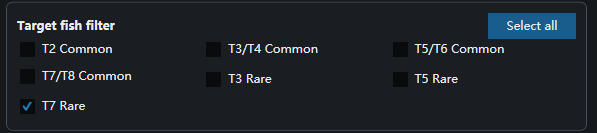
Filter target fish
Choose fish by tier and rarity, such as T7 rare fish only. With this filter, the average is about 6m silver per hour; actual returns depend on market prices and catches.
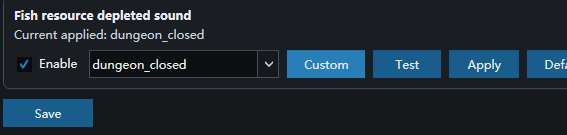
Save settings
Click Save after editing; the new settings take effect only after saving.
Auto gathering
Set gathering, combat and retreat rules, then check the map, inventory and in-game controls.
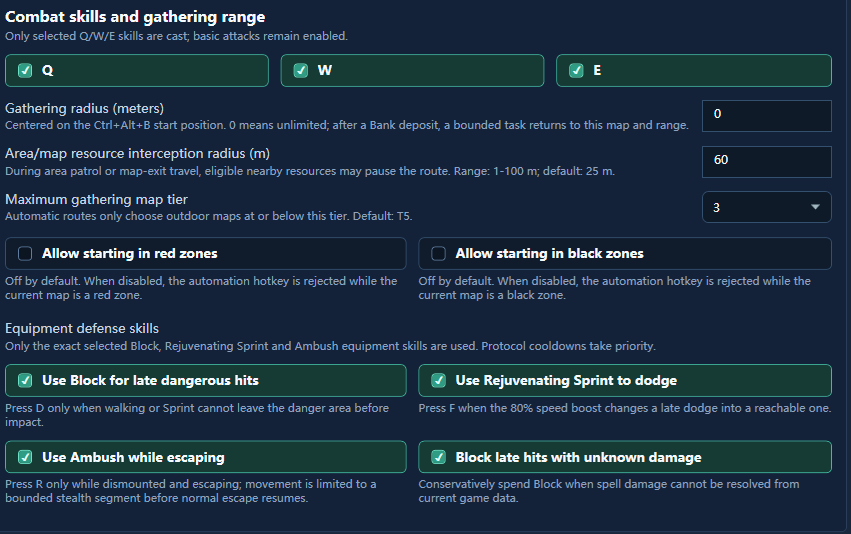
Set gathering and skills
Choose targets, search range and equipment skills. Review the red- and black-zone options before starting.
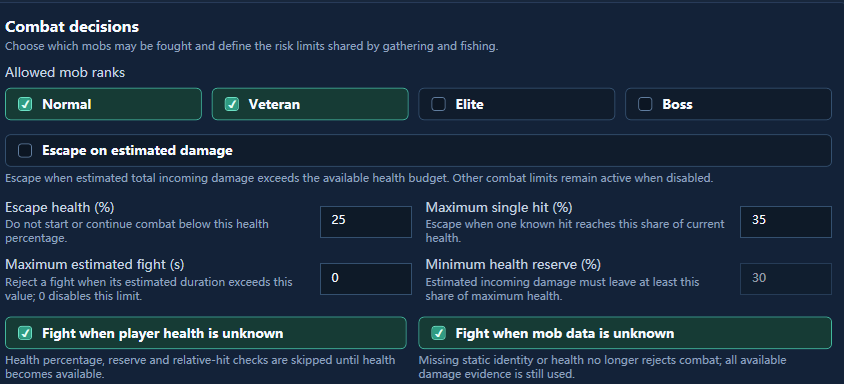
Set combat and retreat
Choose which monster tiers to fight, whether to fight with incomplete data, and the health threshold for retreat.
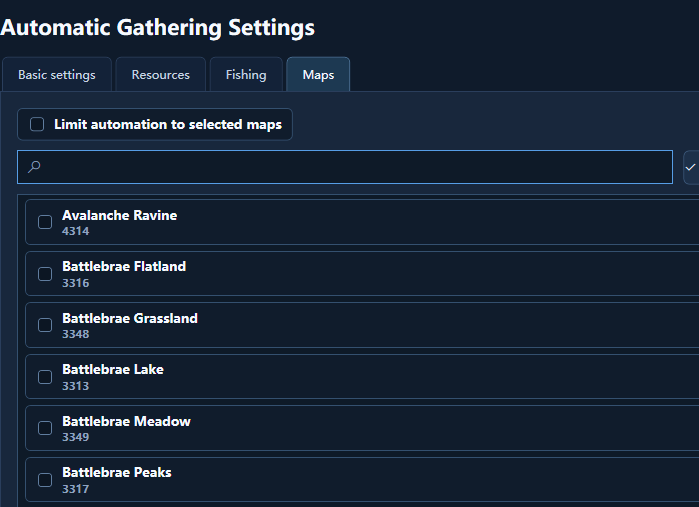
Choose gathering maps
Select the maps in the map picker to gather on those specific maps.
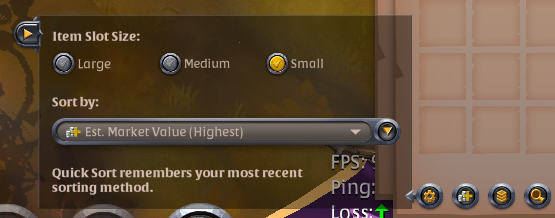
Check inventory slot size
Set Item Slot Size in the inventory to Small. If gathered items are not deposited automatically, check this setting first.
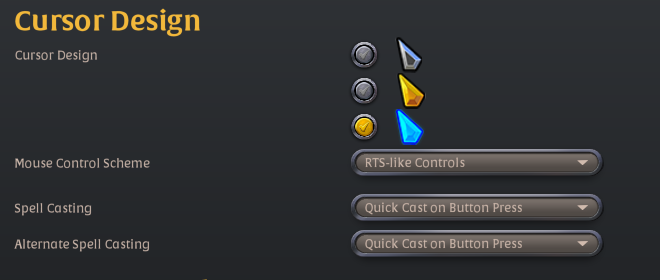
Recommended game controls
For in-game controls, we recommend RTS-like Controls and setting both Spell Casting and Alternate Spell Casting to Quick Cast on Button Press. Adjust as needed.
Ready to start? Download the Windows client and follow these steps to configure it.
Download client